Summary: In this simplified guide, you will understand and learn the top methods to back up Thunderbird emails to avoid the corruption of the Thunderbird mailbox. By following this blog, thunderbird users can easily back up their mailbox data into an external hard drive. We recommend a professional tool to back up Thunderbird mailbox into PST, EML, MSG, and the MBOX file format.
There are some obvious reasons why users think of the Thunderbird backup. Developed by Mozilla Foundation, Thunderbird is an email client, news client, chat client, etc. Thunderbird uses the MBOX file format. The main reason behind the Thunderbird backup is to safeguard valuable data and create an extra copy. It is for a bad time if for any reason you are not able to access your Thunderbird data.
Why We Need to Backup Thunderbird Emails to External Hard Drive
Backing up Thunderbird emails is crucial for ensuring the protection and availability of important data. Emails often contain valuable information such as work communication, personal correspondence, and attachments, making them a critical asset for individuals and organizations alike. There are several common reasons why it is important to back up Thunderbird emails to an external hard drive:
- Thunderbird emails contain important information such as work-related communication, personal correspondence, and attachments. Losing this data due to hardware failure or a system crash can be devastating. Backing up your emails to an external hard drive ensures that you can always recover this data in case of an unexpected event.
- Sometimes email servers can experience problems, causing emails to be lost or deleted. If you have backed up your emails to an external hard drive, you can easily retrieve any lost emails and attachments.
- When you upgrade your computer or change to a new device, you may lose your Thunderbird emails if you don’t have them backed up. With a backup on an external hard drive, you can simply transfer your emails to your new device.
- External hard drives offer better security than cloud storage because they are disconnected from the internet. This means that your emails are less vulnerable to cyberattacks and hacking attempts.
Where backup Thunderbird emails?
After clearing the point that why we should backup the Thunderbird, the next basic question is where we should back up our Thunderbird emails. To backup data, it is a must that the target must be easily accessible, easily portable, and safe. The best option for Thunderbird backup is, the .pst file of MS Outlook. It fulfills all the conditions of an ideal storage file. You can store them on a Hard Drive too as per your convenience.
PST files are the data storage file (Personal Storage Table) of MS Outlook. MS Outlook is the most prominent email client in today’s world. It is easy to port, easy to view, and also allows applying a password on the PST file.
Back up your Thunderbird IMAP account to a hard drive in your preferred format—such as PST, MSG, or EML—using the Shoviv IMAP Backup and Restore tool. A free trial version is available to get you started.
Methods to Backup Thunderbird Emails to External Hard Drive
For Thunderbird backup, we have a manual as well as a professional way. Let’s know about both ways in detail.
Manual Ways:
To backup Thunderbird emails in PST file format, we have three manuals ways and a professional solution:
- ImportExportTools Add-on
- Thunderbird User’s Profile backup
- Backup Thunderbird emails as a Zip file
- Thunderbird backup Using a Professional tool
follow the below-given steps very carefully to execute the backup process using the manual method:
Backup Thunderbird Emails Using ImportExportTools Add-on
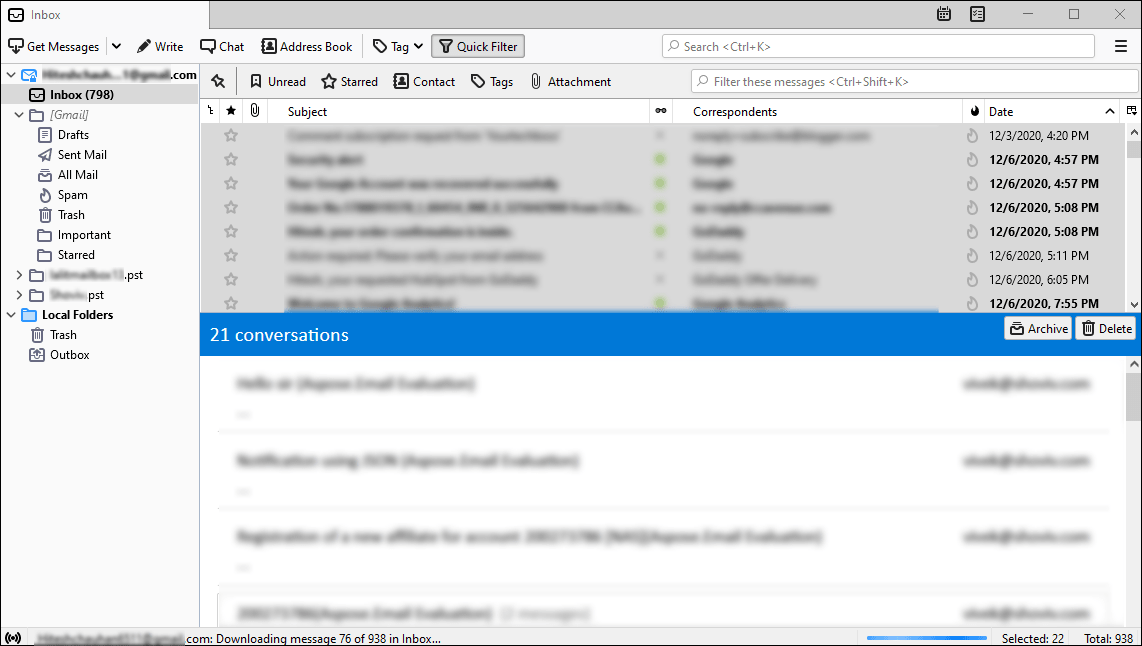
- Firstly, run the Mozilla Thunderbird and open the selected mailbox.
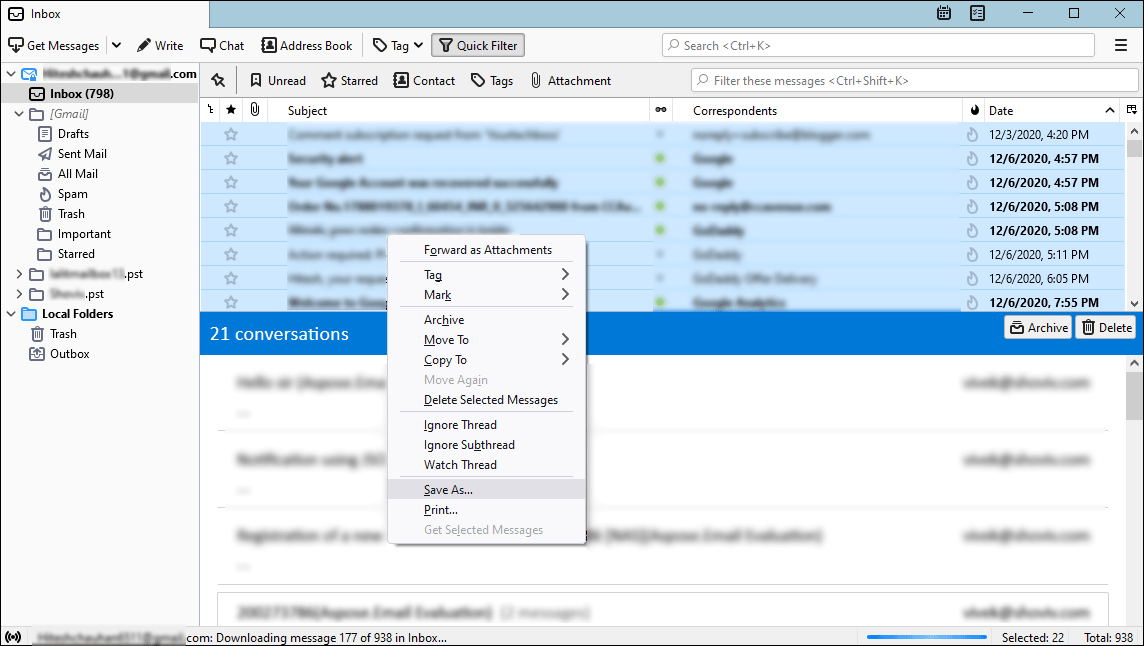
- Secondly, make the selection of emails that you want to back up in the PST file.
- Make a right-click and go with the “Save As” option.
- Select the target folder to backup Thunderbird emails by clicking on the “Select Folder” option.
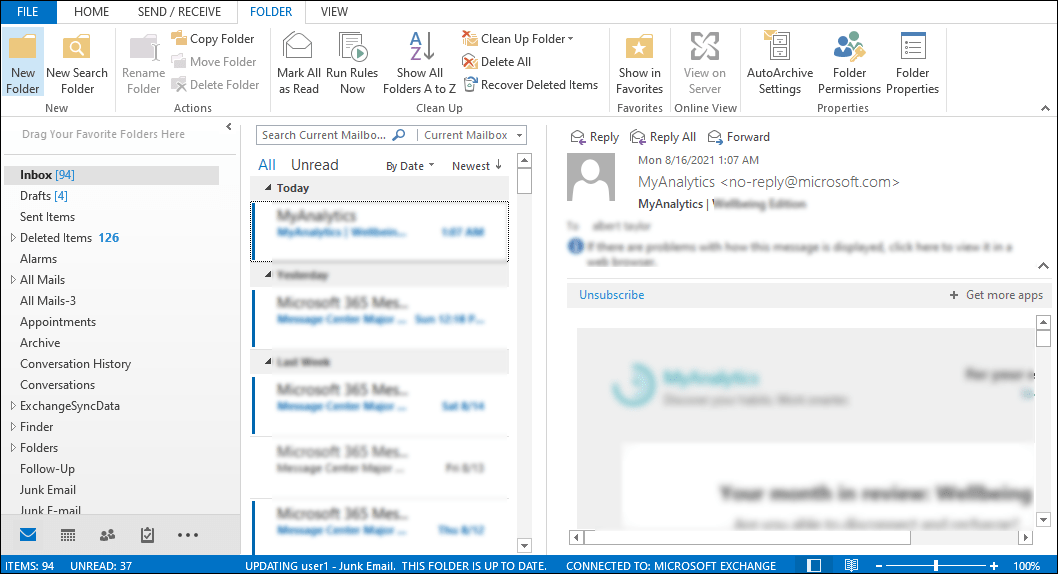
- Launch the MS Outlook and create a new folder.
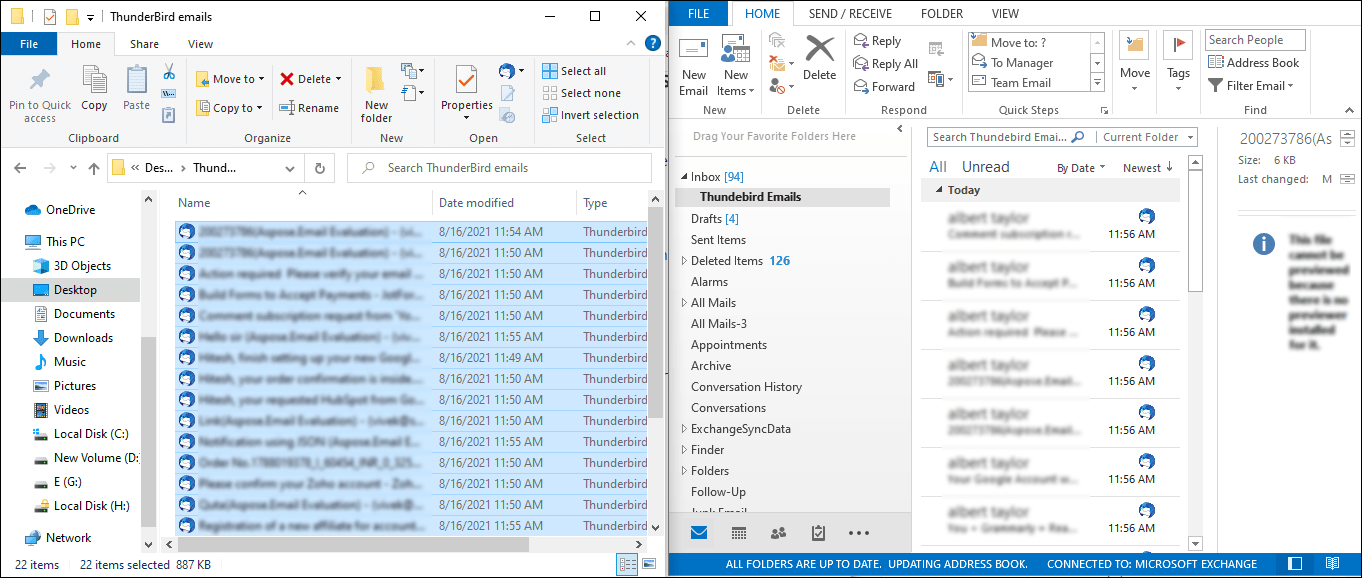
- Using “drag & drop” save the Thunderbird emails by placing them on the Outlook interface.
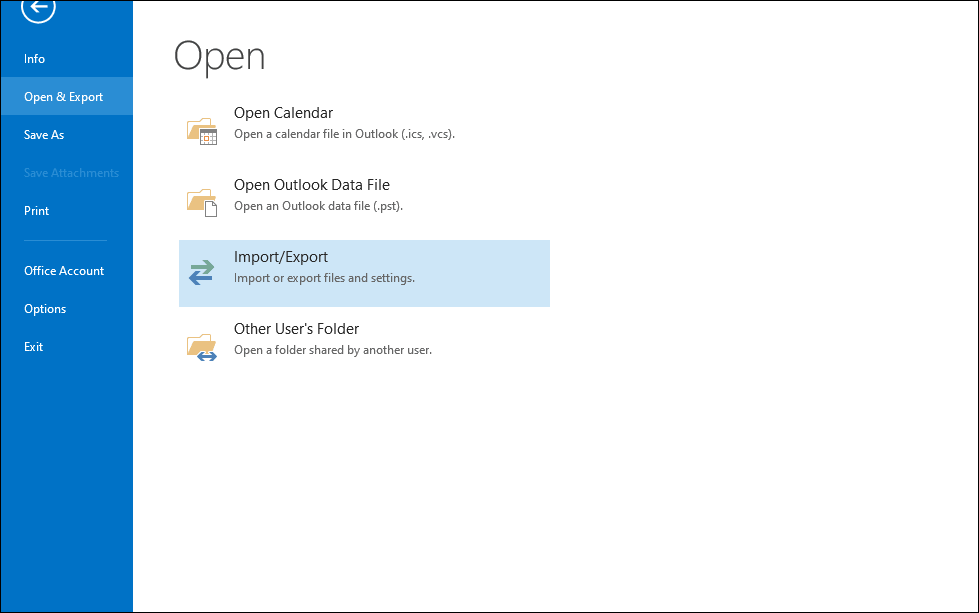
- Now go to the “File” menu.
- Import/Export > “Open & Export”
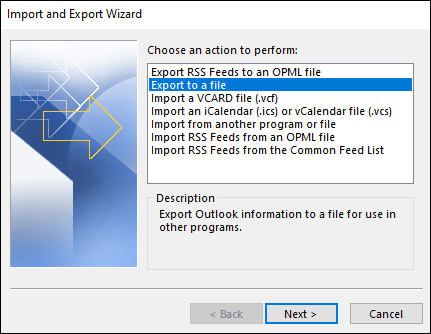
- Go with the “Export to a file” option and click on the Next.
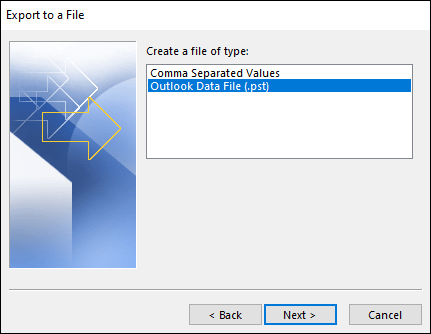
- Choose “Outlook Data file” and make a click on the “Next” button.
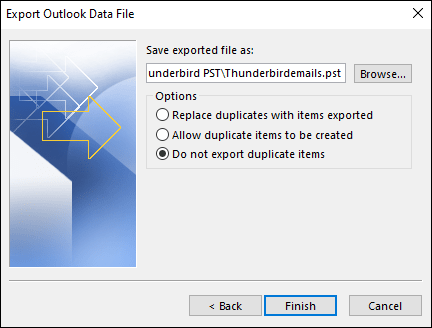
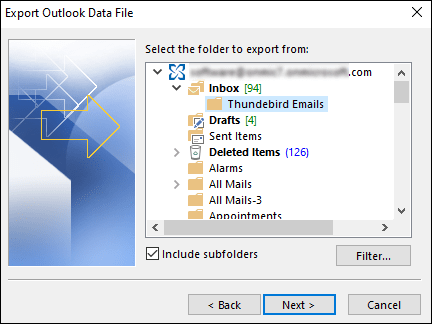
- Then select the folder containing the Thunderbird emails to export in PST.
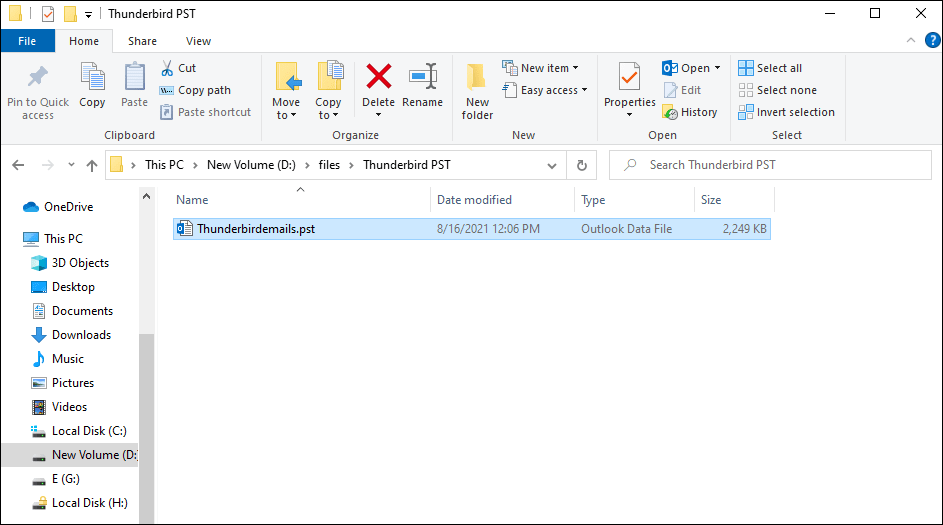
- Set preferences and click on “Finish” to get the PST files.
Backup Thunderbird User’s Profile
With the Thunderbird Profile’s backup, you can backup your emails. To backup Thunderbird’s profile, simply copy data from the user’s profile folder and paste it into the desired location.
Below are the steps to follow:
- Firstly launch the Thunderbird.
- On the icon named “Display the Thunderbird Menu” make a click.
- Now move to the Help>> Troubleshooting Information. It will launch the Troubleshooting Information window in the new tab.
- Under the Applications Basics section, there is Open Folder (Local drive) button, click on this.
- By clicking the Open Folder button, the user’s profile directory having a specific name format consisting of the line of the random character will be displayed.
- Now come outside the folder. Copy the user’s profile folder, and paste it into the desired directory.
By following the above-given steps, you can easily copy-paste the user’s profile folder to the desired location.
How to Backup Thunderbird emails as a Zip file?
Thunderbird emails backup as a zip file is not tricky; follow the below steps to perform a one-time email backup as a zip file.
- Run Windows Explorer and browse %Appdata%
- Or directly Press the Windows+R key to search %Appdata%
- The full path looks like C:\Users\Username\AppData\Roaming.
- Scroll down to find the Thunderbird folder
- Right-click on the Thunderbird folder
- Then Select Send>Compressed (Zipped) folder.
- Wait until your Thunderbird folder is copied and compresses as a zip archive file.
Note: Your original Thunderbird folder remains as it is; now copy the compressed zip file and save it to an external hard drive or somewhere other you want. Now you get complete thunderbird backup; if anything wrong happens with your MBOX file, extract the zip folder and import MBOX files using ImportExportTools Add-on.
What drawbacks manual methods have?
There are various limitations and drawbacks associated with the manual way of Thunderbird backup.
- The manual method consumes a lot of time and it is very tedious too.
- In manual export, Emails often lose their unique SMTP header.
- Doer can’t be assured of correct and complete export of emails.
- Doer must be technically sound to execute the task of Thunderbird backup.
- Chances of human-error are very high with the manual way; a single mistake can ruin the whole process.
Professional Method to backup thunderbird emails to External Hard Drive
Every professional wants a perfect and effortless solution to backup Thunderbird emails, and no one wants to risk the data anyhow. To provide a professional solution for the Thunderbird backup in the hard drive, Shoviv Software has developed an advanced tool. Shoviv IMAP Backup and Restore tool provides an ideal way to backup your Email account configured in Thunderbird Mail. The software is laced with several user-oriented features, which make the Thunderbird backup process an enhanced process.
Let’s know about the Shoviv IMAP Backup and Restore tool’s features:
- You can backup your original mail server mailboxes in a single go and without any restrictions.
- The software has a filter option based on the message date and folder filter. Using the filter option, you can make the backup process desired and exclude unwanted emails from the process.
- You can schedule the backup process for a specific day/time. if required, you can schedule the backup process daily, weekly, and monthly.
- Also, The software works on an incremental basis which means it will not backup item if that is already processed.
- You can choose the desired file format to backup Thunderbird emails. The given file formats are PST, MBOX, MSG, EML, HTML, and MHT.
- Last but not least, if required, you can restore/export files to the Thunderbird mailbox without any extra cost.
These are the few features the Shoviv IMAP Backup and Restore tool offers. Apart from these, there are many more. Shoviv offers a free version of the tool, so you can check its features and compatibility before purchasing it.
Below is its step-by-step process to backup Thunderbird emails, make sure to install the free version of the tool and examine the tool by yourself.
Backup Thunderbird Emails to External Hard Drive in Easy Steps
- Run Shoviv IMAP Thunderbird Backup Tool.
- Create a Backup Job & Map Thunderbird with Credentials.
- Create a backup directory & Select Backup Type.
- Apply Filter if Needed such as folders and Date.
- In Scheduler Tab, Select Run Job Manually.
- Then, click Run Job Instantly box & backup will start.
Here the process gets complete; as you can see, the tool is the same as using an android application and doesn’t ask for any technical hands.
Note: For those whose configured their email account in thunderbird via POP, and want mailbox back up in PST format rather than MBOX format. The only solution for them is Shoviv MBOX to PST Converter tool. This software easily convert your year or archive emails into PST format wihtout any restrictions.
Why IMAP vs. POP3 Configuration is the “Make or Break” of Your Backup
Before you copy a single file, you must understand how your email account is configured in Thunderbird. Whether you use IMAP or POP3 fundamentally changes where your data lives and whether your backup will actually contain your messages or just empty “skeletons” of them.
1. The IMAP “Offline Storage”
Most modern users use IMAP because it syncs mail across multiple devices. However, there is a common misconception: just because you can see your emails in Thunderbird doesn’t mean they are stored on your computer.
By default, Thunderbird often downloads only the headers (Subject, Sender, Date) to save space, fetching the actual message body from the server only when you click on it. If you back up your profile without enabling “Offline Storage,” your backup will be useless if you lose access to the mail server.
- The Fix: Go to Account Settings > Synchronization & Storage.
- The Must-Do: Ensure that “Keep messages in all folders for this account on this computer” is checked. This forces Thunderbird to download full copies of every email and attachment, ensuring they are included in your local backup.
2. POP3: Your Local Profile is the “Only” Copy
If your account is configured with POP3, the stakes are much higher. POP3 typically downloads emails from the server to your PC and then deletes them from the server.
- The Reality: Your Thunderbird profile is likely the only place your historical data exists.
- The Importance: If your hard drive fails and you haven’t taken a manual backup of the %APPDATA%\Thunderbird\Profiles\ folder, those emails are permanently unrecoverable. For POP3 users, a regular backup schedule isn’t just a recommendation—it’s a survival strategy for your data.
Comparison: Backup Impact at a Glance
| Feature | IMAP Configuration | POP3 Configuration |
| Data Location | Primarily on the Server | Primarily on your Local PC |
| Backup Risk | May only back up “headers” if sync is off | Total data loss if local drive fails |
| Folders Included | Full hierarchy (if subscribed) | Usually only the “Inbox” |
| Best Practice | Enable “Offline Use” before backup | Backup the entire Profile folder regularly |
3. Folder Subscriptions and Synchronization
Another critical step for IMAP users is verifying “Subscribed” folders. If you have created custom folders on a webmail interface (like Gmail or Outlook.com) but haven’t “subscribed” to them in Thunderbird, they won’t appear in the client—and consequently, they won’t be included in your backup.
Expert Tip: Right-click your account name, select Subscribe, and ensure every folder you care about is checked. Then, verify they are set to sync in the Synchronization & Storage settings mentioned above.
Final Words:
Everyone has their reason for the Thunderbird backup and the users have a choice of manual and professional methods. The manual method is very long, and technically complicated, and also has limitations while the professional Shoviv IMAP Backup Tool is an advanced utility with various functionalities. Using the professional utility you can easily take the Thunderbird email backup on the hard drive.
A free trial version of this tool is also available to download, users can easily download and check the working of the software. Also, The free version also allows backup of the first fifty items per folder. By regularly backing up Thunderbird emails to an external hard drive, users can safeguard their data against unforeseen events, improve security, and easily retrieve lost or deleted emails.
Frequently Asked Questions:
A: No, you will not lose your emails if you reinstall Thunderbird. However, if you do not have a backup of your Thunderbird profile, you may lose your account settings, preferences, and customizations.
A: To backup old emails to your hard drive in Thunderbird, you can follow these steps:
1. Open Thunderbird and select the email account that you want to back up.
2. Click on the “Tools” menu and select “Account Settings.”
3. In the “Account Settings” window, click on “Server Settings” under the account name.
4. Click on “Local Directory” to see the location of your Thunderbird emails.
5. Copy the desired emails or entire folder and paste it into your external hard drive or cloud storage.
A: The best backup for Thunderbird depends on the user’s needs and preferences. External hard drives, USB drives, and cloud storage such as Google Drive, Dropbox, and OneDrive are all good options for backing up Thunderbird data.