Executive Summary: To import a PST to Gmail, use the Google Workspace Migration for Microsoft Outlook (GWMMO) tool for standard files. For orphaned PSTs or those exceeding 50GB, use a professional migrator like Shoviv to bypass Outlook. Always ensure OAuth 2.0 or an App Password is configured in your Google Security settings to allow the data transfer.
While Gmail needs no introduction, importing a PST file into it requires a bit of technical strategy. Whether you are migrating an active Outlook profile or retrieving data from an orphaned database, achieving zero data loss comes down to using the right approach.
In this guide, we will break down the most reliable methods to ingest PST data into Gmail while preserving critical email metadata, folder hierarchies, and attachments.
The Prerequisites: What You Need Before Importing
Success starts with preparation. You must audit your files and secure your account. Skip these steps and your migration will likely fail.
Checking PST File Health (ANSI vs. Unicode)
Your Outlook version determines your PST file type. Modern files use the Unicode format. Legacy files use the ANSI format.
- Unicode PST (Modern) – This is the standard for Outlook 2003 and later. It supports up to 50GB of data. It also handles international characters perfectly.
- ANSI PST (Legacy) – This was used in Outlook 2002 and earlier. It has a strict 2GB size limit.
- The Corruption Risk – If an ANSI file nears 2GB, it often corrupts. This stops the Gmail import immediately.
- The Health Check – Run the ScanPST.exe (Inbox Repair Tool) before you start. It fixes internal errors in your data headers.
- The Language Factor – Unicode is required for non-English characters. If your emails use multiple languages, ensure you aren’t using an old ANSI container.
Modern Authentication: Preparing Your Google Account (OAuth 2.0)
Google’s security protocols are strict. You can no longer use your standard Gmail password for third-party tools. Basic Authentication is dead.
- Enable 2-Step Verification (2SV) – This is mandatory. You cannot access modern migration APIs without it.
- Use OAuth 2.0 – Most tools use “Sign in with Google.” This creates a secure, temporary token. Your actual password remains private.
- The App Password Fallback – Some legacy tools don’t support OAuth. In this case, generate a 16-digit App Password in your Google Security settings.
- Check API Permissions – If you use Google Workspace, ensure your admin has enabled the Gmail API.
- Revoke After Use – Once the migration is done, delete the App Password or revoke the OAuth token. This keeps your cloud environment secure.
Use the Shoviv IMAP Backup & Restore Tool for importing Outlook PST emails to your Personal @gmail.com account.
Use Shoviv Google Workspace Backup & Restore to quickly transfer all your important emails, contacts, and other data from Outlook PST to your Google Workspace (Gmail for Business @yourdomain) Accounts.
Methods to Migrate/Import PST to Gmail Accounts
Here, I’ll discuss three methods; all methods can import a PST into Gmail. One of them required Outlook installation, and the other two methods work without Outlook.
One is Google Workspace migration for Microsoft Outlook (GWMMO), and the second one is enabling IMAP configuration in Gmail and Adding an account in Outlook. The third one is an automated software named Shoviv Gmail Backup and Restore tool.
Method 1: Import PST File into Gmail Using GWMMO
Google Workspace Migration for Microsoft Outlook (GWMMO) is the standard utility for importing PST data. It is a free tool provided by Google. It works best for individual users moving data to a new Workspace or Gmail account.
Step-by-Step Installation and Authorization
Getting started with GWMMO is a simple process. Follow these steps to set up the connection:
- Visit the official Google Workspace download page. Download the GWMMO installer.
- Open the .exe file on your Windows machine. Follow the on-screen prompts to finish the setup.
- Launch the application. Type your Google email address into the login box.
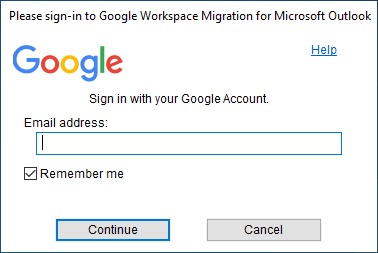
- A secure browser window will open automatically. Sign in to your Google account here.
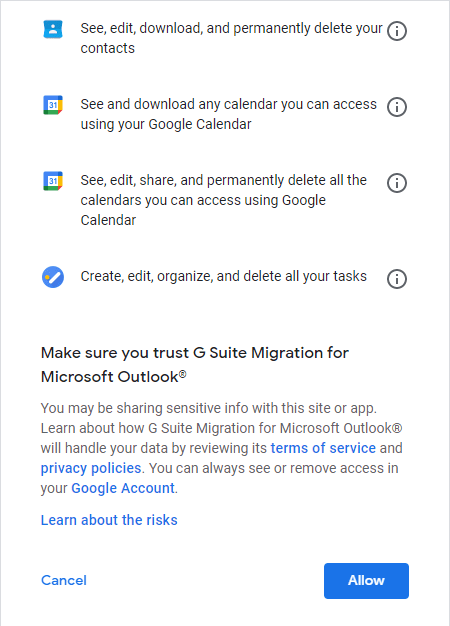
- Review the access request. Click Allow to authorize the migration. This process uses OAuth 2.0. You never have to share your actual password with the tool.
Selecting Data Types: Mail, Calendar, and Contacts
Once authorized, you can choose exactly what data to move. This helps you avoid importing unnecessary junk.
- Select Source: Choose “From PST File(s)…” from the dropdown menu.
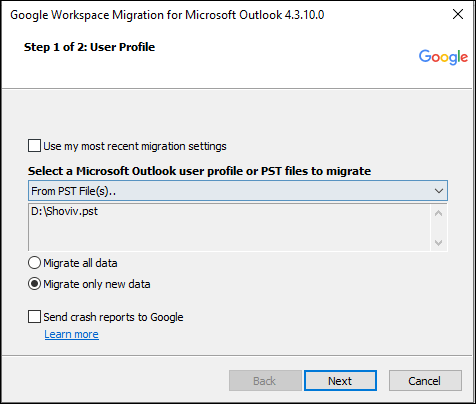
- Locate Your File: Browse your local folders. Select the PST file you wish to import.
- Choose Your Items: You will see checkboxes for Emails, Contacts, and Calendar. Check only the items you need.
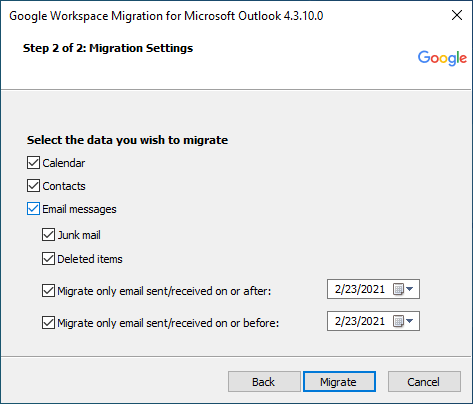
- Apply Filters: You can migrate all data or specify a date range. This is useful for skipping old, irrelevant archives.
- Start Migration: Click the Migrate button. The tool will begin pushing your data to Google’s servers.
- Verify Data: Once done, verify it by logging in to the Gmail account you provided earlier in the process.
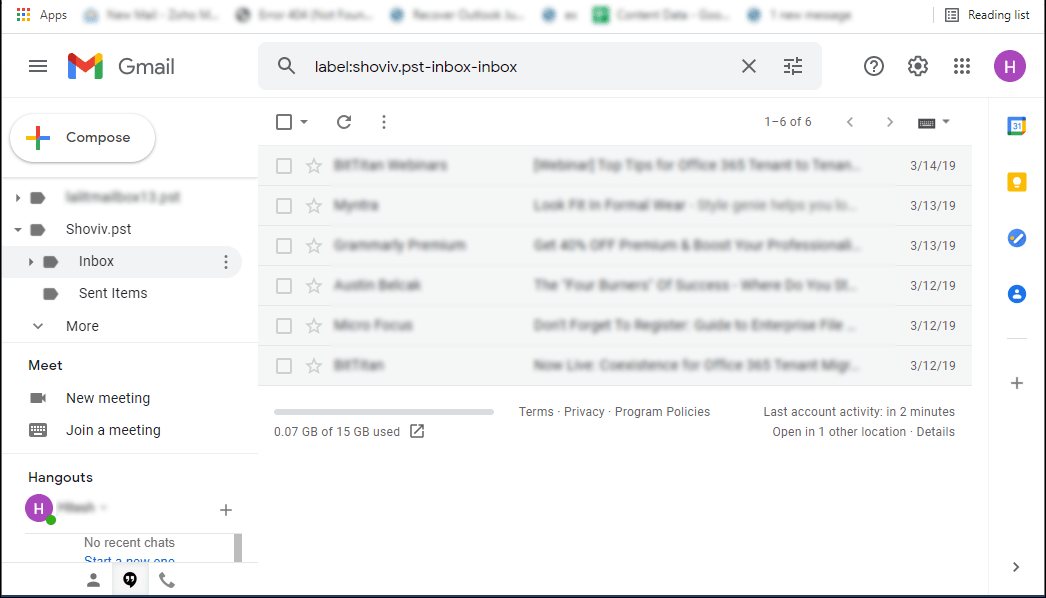
It is how you can import Outlook PST to Gmail for free. With the GWMMO tool, users can import existing email, calendar, events, and personal contacts from PST files to their Gmail account. However, the GWMMO tool imports only personal contacts, and it also takes too much time, which is more than your expectations.
What are the limitations of importing PST to Gmail using the GWMMO Method?
There are a few drawbacks to using the GWMMO method to import PST to Gmail. The GWMMO Method can come with a few challenges, as it requires some technical knowledge. Knowing these helps you avoid migration failures.
- Gmail has a strict limit on file size. If a PST email contains an attachment larger than 25MB, GWMMO will skip it. These items will show as “Failed” in your migration report.
- You must have a version of Outlook installed on your computer. GWMMO uses the Outlook MAPI engine to read the PST file.
- The tool struggles with PST files that are disconnected or corrupted. It often fails to read headers in “dirty” files.
- GWMMO processes data one item at a time. For PST files larger than 20GB, the process can take several hours or even days.
- Gmail labels have character limits. Very deep folder structures in Outlook may be truncated or merged during the import.
Third-party tools are recommended to import a PST file to Gmail instantly and with the organization’s global list
Method 2: Import PST File into Gmail with Outlook
The “Drag-and-Drop” method is a manual way to move PST data. It uses Outlook as a bridge to upload files to Gmail servers. This method costs nothing. However, it requires a stable internet connection and patience.
You must first link your Gmail account to Outlook using the IMAP protocol. In 2026, Google requires Modern Authentication for this connection.
Configuring Gmail via IMAP in Outlook Desktop
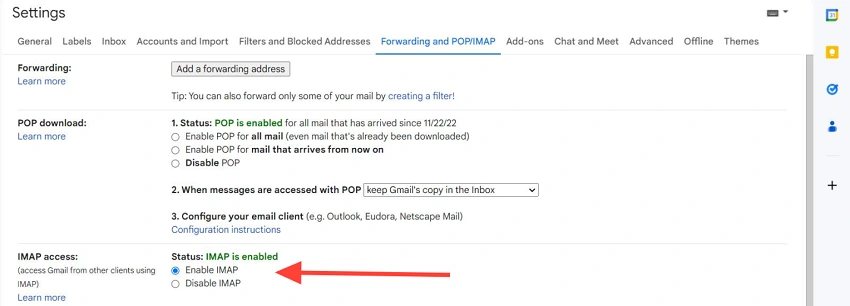
- Log into Gmail on the web. Go to Settings > See all settings. Click the Forwarding and POP/IMAP tab. Select Enable IMAP. Click Save Changes.
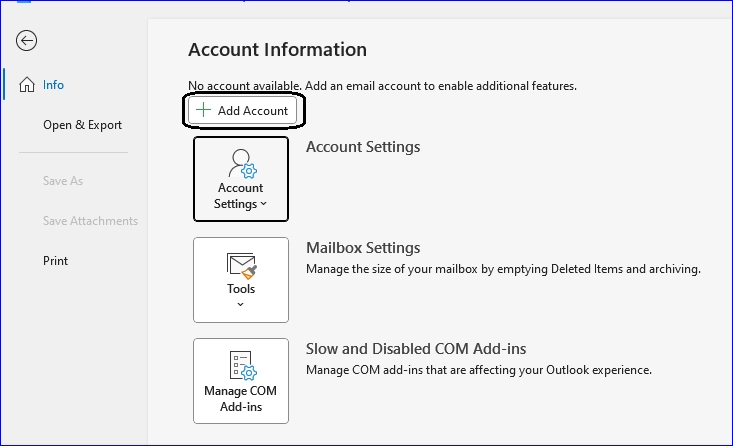
- Open the Outlook desktop app. Click File > Add Account.
- Type your Gmail address. Outlook will trigger a Google login window. Sign in using OAuth 2.0.
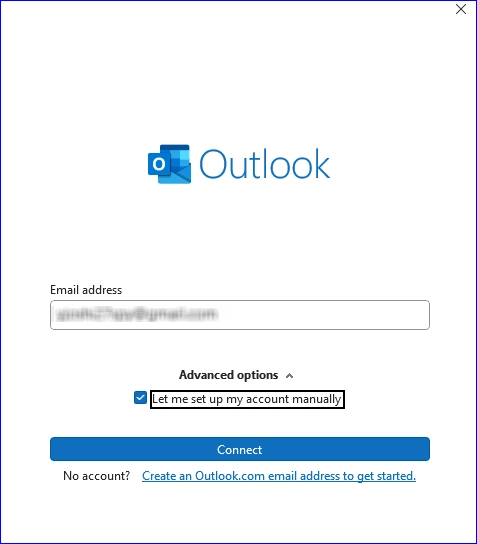
- Some older Outlook versions do not support OAuth. In that case, generate a 16-digit App Password in your Google Account security settings.
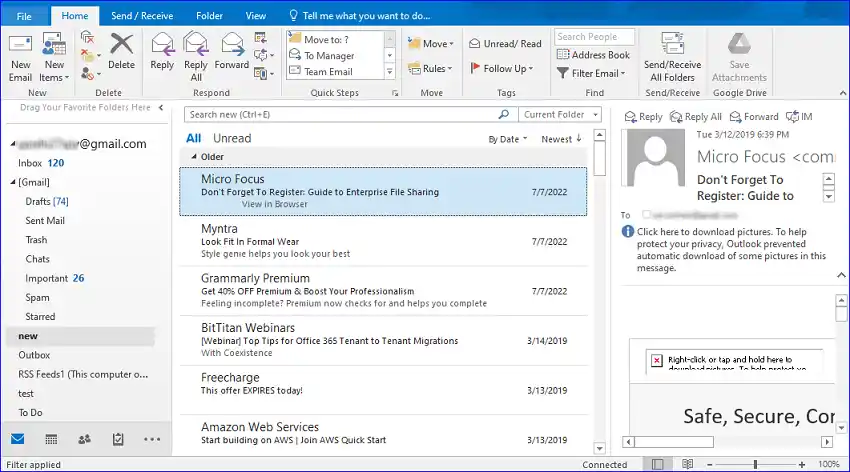
- Outlook will create a Gmail mailbox in your left sidebar. Wait for the folder hierarchy to download completely.
Manually Moving Folders (Risks of Data Loss and Sync Lag)
Once Gmail is linked, you can move data from your PST file. Simply drag a folder from the PST and drop it into the Gmail mailbox. While simple, this method has significant technical risks.
- Severe Sync Lag – Outlook uploads data one item at a time. A 10GB PST can take several days to sync. Your computer must stay awake during this entire process.
- Connection Timeouts – Large uploads often trigger “Server Busy” errors. If the internet flickers, the sync stops. You may find only half of your emails made it to the cloud.
- The 25MB Attachment Block – Gmail rejects any email over 25MB. Outlook will keep trying to upload these large files. This creates a “Sync Loop” that slows down your entire system.
- Metadata Corruption – Manual moves can be unstable. Sometimes, Gmail replaces the “Original Sent Date” with the “Upload Date.” This makes your archive difficult to search later.
- Outlook Freezing – Moving thousands of items at once puts a heavy load on Outlook. The application may become “Not Responding” and crash. This can lead to PST file corruption.
Expert Note: The drag-and-drop method is best for very small PST files (under 500MB). For enterprise-scale archives, use a direct ingestion tool to avoid sync errors and data loss.
Import PST File to Gmail Without Outlook: The Persuasive Strategy
The most recommended way to import PST files to Gmail is using a third-party tool. There are many software on the internet; one of them is Shoviv IMAP Backup and Restore (AKA Shoviv Gmail Backup and Restore Tool).
This software is devised in a such way that it can import Outlook PST into Gmail, Office 365, Yahoo, and all other IMAP server mailboxes. Yes, you read it right, you can import PST files to all IMAP Server mailboxes, and without Outlook installation.
Simple Steps to Import PST to Gmail:
- Run the Shoviv Gmail Backup and Restore Tool.
- Click the Mailboxes Restore Jobs Button and enter the Job Name.
- Add PST File to Import and enter Server Name.
- Map PST with Gmail Mail and Use the Thread Option.
- Check the Run Job Instantly box to start the Import Process.
Import PST to Gmail Process described with Screenshots
- Visit Shoviv’s website, then install and open the software on your system.
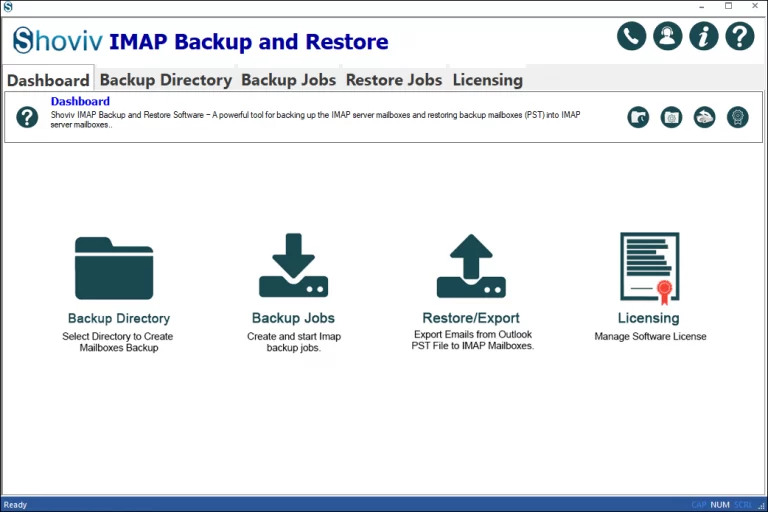
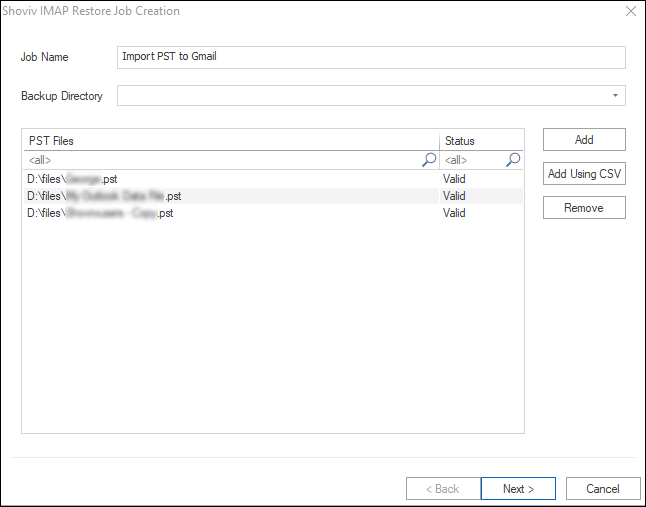
- Now click on the Restore/export button, provide the job name, and Add PST files. After that, click on the Next button.
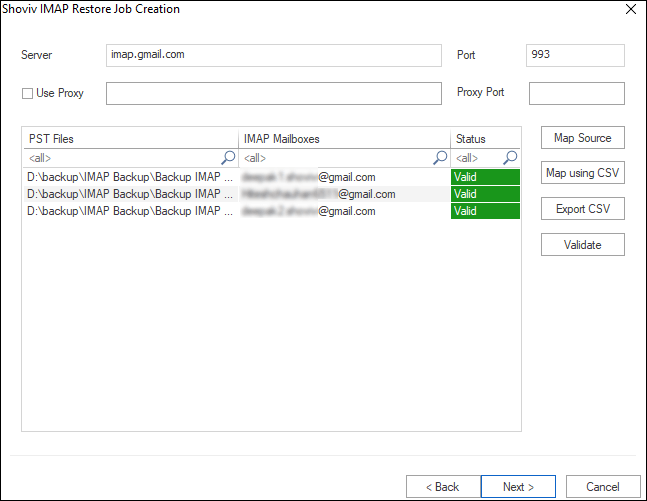
- Now enter the Server name (for Gmail “imap.gmail.com”) and Map Gmail mailboxes with the PST files. Now validate the Gmail mailboxes by clicking the validate button. Once done, click on the Next button.
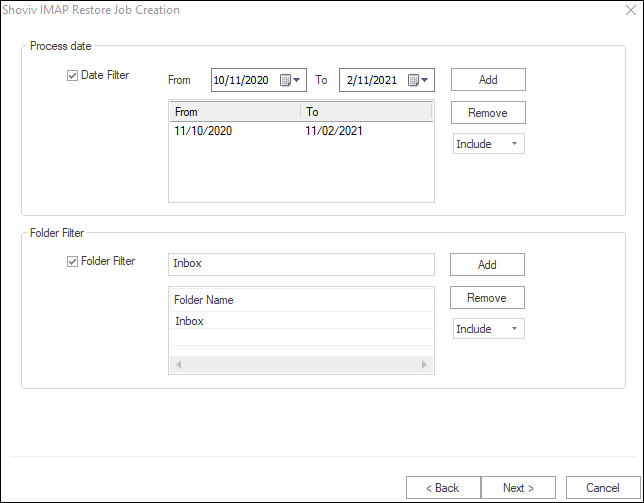
- Next will be the Filter wizard. Here, you can include/exclude PST items on the process date and on a folder filter basis. After using the filter option, make click on the Next button.
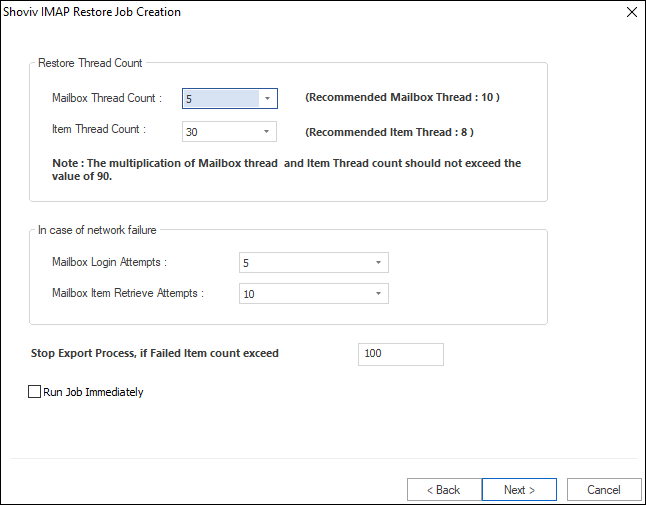
- Now, the Thread settings wizard will appear. With this option, you can run multiple threads to import PST files to Gmail speedily. Check the Run job immediately checkbox to run the job after finishing the settings.
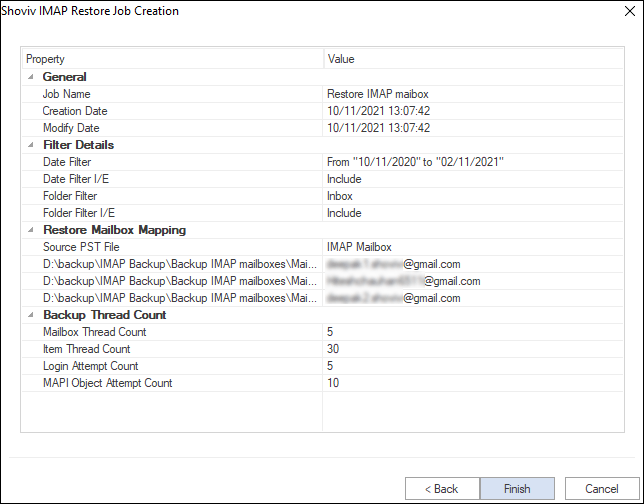
- Finally, you will be provided a preview of the settings for your import process. If satisfied with the settings, click Finish. To edit, click Back.
Best Features (Shoviv IMAP Backup and Restore)
- Import in IMAP server – As I’ve mentioned earlier, with the Shoviv IMAP Backup and Restore tool, you can import PST to Gmail, Yahoo, Outlook, ZOHO, Mail, and other email services that use the IMAP protocol.
- Prevent Duplicity – The software has a default incremental option that prevents importing items that are already presented in Target. Hence, you will never import duplicate items, this will reduce the size of the IMAP mailbox.
- Maximize the import process – The software has an additional item thread setting facility. Using this feature, users can run multiple threads for PST files and items. By running the multiple threads, the import process speed will increase uncommonly.
- Create multiple import jobs – In Shoviv IMAP Backup and Restore tool, you can create multiple jobs to import PST files to Gmail. Multiple jobs enable users to import PST files to multiple different IMAP mailboxes (PST to Gmail, PST to Office 365, and any other IMAP service).
- Import only items you need – Shoviv IMAP Backup and Restore tool has a filter option by using which users can include/exclude desired items from the import process. Users can select a date range or add folders’ names to include/exclude them.
Comparison Table: GWMMO vs. Manual vs. Professional Tools
Choosing the right migration path depends on your data volume and technical comfort. Google’s API limits and security protocols make some methods much more reliable than others. Use this table to compare the three primary ways to import PST data into Gmail.
| Feature | GWMMO (Official Tool) | Manual (IMAP Drag-and-Drop) | Professional Tool (Shoviv Gmail Backup) |
| Migration Speed | Moderate: Limited by standard Google API throttling. | Slow: Dependent on Outlook’s sync engine and local bandwidth. | High: Uses multi-threaded API calls for enterprise-level speed. |
| Data Accuracy | High: Preserves Email, Calendar, and Contacts well. | Risky: Often loses folder hierarchy or changes “Sent” dates. | Excellent: Full metadata preservation (BCC, Headers, Read/Unread). |
| File Size Limit | Moderate: 25MB per message limit; struggles with 50GB+ PSTs. | Low: Highly unstable with PST files larger than 2GB. | Unlimited: Can handle 50GB+ PSTs; automatically splits large files. |
| Outlook Required? | Yes: Must have an active Outlook profile configured. | Yes: Requires Outlook to be open and synced via IMAP. | No: Works as a standalone app; handles orphaned PST files. |
| Ease of Use | Medium: Straightforward UI but requires several steps. | High (Initial): Simple to start, but difficult to monitor. | High: Automated batch processing with detailed logs. |
Which Method Should You Choose?
- Best for Individuals – If you have one small PST file (under 2GB) and Outlook is already running, GWMMO is the safest free choice.
- Best for Quick Fixes – If you only need to move a few specific folders or single emails, the Manual Drag-and-Drop method works without installing new software.
- For Enterprise & Power Users – If you have orphaned PST files, large archives, or multiple mailboxes, Professional Gmail backup & Restore tools are essential. They bypass the API “Sync Loops” and ensure no data is left behind during the import process.
Bringing all Together
We have covered three distinct methods to import old archive emails from the PST format into your Gmail account. Moving your data is a critical step in transitioning from a desktop-bound archive to a modern cloud environment.
The right choice ultimately depends on your technical setup and mailbox size. If you are handling large, orphaned, or enterprise-grade archives, we suggest trying the free demo version of the Shoviv IMAP Backup and Restore tool first.
Prioritizing data integrity—such as preserving SMTP headers, timestamps, and read/unread statuses—is the secret to a seamless migration. By verifying your folder hierarchies and setting up your Google modern authentication correctly before you begin, you can ensure a flawless ingestion process with zero data loss.
Frequently Asked Questions:
Yes, but you cannot use the official GWMMO tool for personal accounts. The Google Workspace Migration for Microsoft Outlook (GWMMO) tool is reserved for Workspace (Business or Education) users.
For Personal Accounts – Use the IMAP Drag-and-Drop method. Link your Gmail to Outlook and move folders manually.
Alternative – Use a professional PST to Gmail migrator. These tools support both personal @gmail.com and professional Workspace accounts.
Direct Import – Gmail’s built-in “Import” settings only work for other email providers like Yahoo or Outlook.com. It does not support local .pst files directly.
It takes 10 to 20 hours on average, assuming a stable 100 Mbps connection. However, the exact speed depends on four technical factors:
– API Throttling: Google limits hourly upload volumes to protect its servers.
– Item Count: Uploading 100,000 small emails takes longer than 1,000 large ones due to server “handshakes.”
– Network Stability: Background streaming or app usage drains upstream bandwidth.
No. Importing a PST will not overwrite or delete your current Gmail data. Migration tools treat the PST as a new addition. They use duplicate detection to skip emails already in Gmail, map Outlook folders to new Gmail labels, and allow safe re-runs if the process gets interrupted.