Summary: Safeguarding your cloud data is essential. This guide explores the most effective ways to export Gmail emails to PST or local storage, covering IMAP Configuration from Gmail to Outlook, Google Takeout and professional Gmail Backup Software. Learn to overcome file size limits and backup failures while ensuring a secure, high-speed archive of your entire mailbox.
Undoubtedly Gmail is one of the prominent email clients having millions of users. But, still, several times need to export Gmail to Outlook arises. Implementing a robust Google Workspace DLP strategy is essential for protecting your active cloud data. However, creating a local backup remains equally vital for comprehensive data security.
If you are one of the users who want to know how to export emails from Gmail to PST in bulk, this blog is absolutely for you. We will include all the aspects of this task that you should be aware of before executing this task.
Top Reasons to Export Gmail to a PST File on Your Hard Drive
- Archiving data helps you free up your space; hence it is very cost-effective to users.
- The situation of downtime due to technical glitches like server down, issues with internet connectivity affects productivity. Data in the local system provides all-time access without any interruption.
- No one will ever wish to take a risk with the essential emails; data is an asset. Despite being the reliable one, nothing on the web is secure. There are always insecurities about cyberattacks, hacking that initiates users to export Gmail to Outlook PST. The backup of data always favors the users.
- Having data in a .pst file provides you ease to port the data. Also, easy accessibility and security with the password come as a perk.
Want to save your Gmail emails in Hard Drive? Use Shoviv Gmail Backup Tool and save your personal emails with attachments in multiple email file formats such as PST, EML, MSG, MBOX, etc.
Secure your business continuity with Shoviv Google Workspace Backup and Restore. Effortlessly export Gmail Emails, Contacts and Calendars to PST and targets. Ensure data integrity, prevent accidental loss, and maintain full control. Start your free trial today!
Easily transform your Google Takeout MBOX files to Outlook PST with Shoviv MBOX to PST Converter. Maintain perfect folder hierarchy and data integrity while bypassing manual conversion hurdles.
Ways to Export Gmail Emails to PST file Format:
Gmail users who are looking for ways to export Gmail from the server to local drive into Outlook PST will get all the answers here. Generally, we have two approaches: manual methods and third-party professional tools. We will discuss both methodologies here and will understand in all. Firstly we will discuss the manual way and all its aspects. Later we will understand about a professional and reliable third-party tool.
Method 1: Export Gmail to PST Using Outlook Import/Export:
There is a need to install the MS Outlook application. After installing Outlook, follow the below-given steps.
- Open Outlook, go to the File tab and click Add Account.
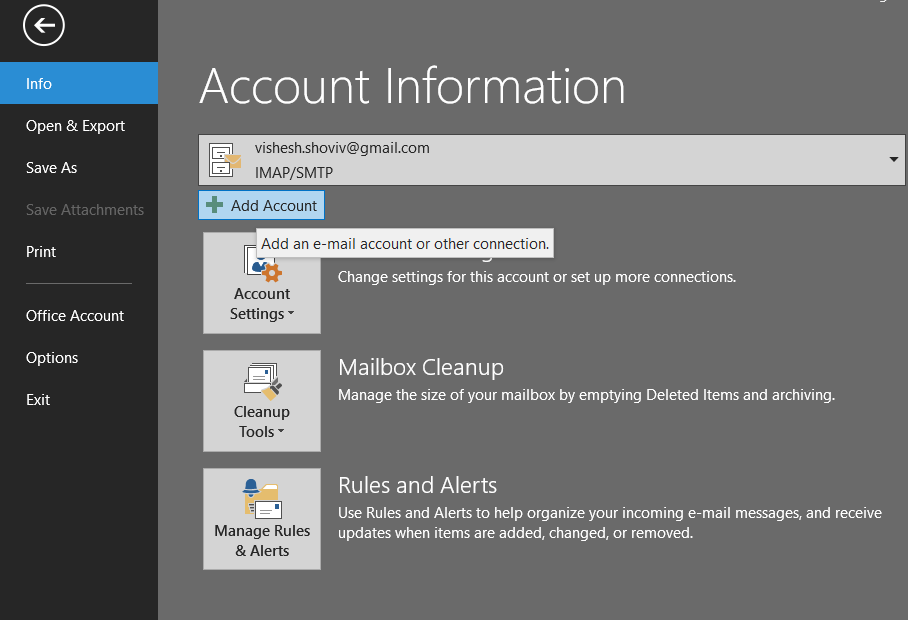
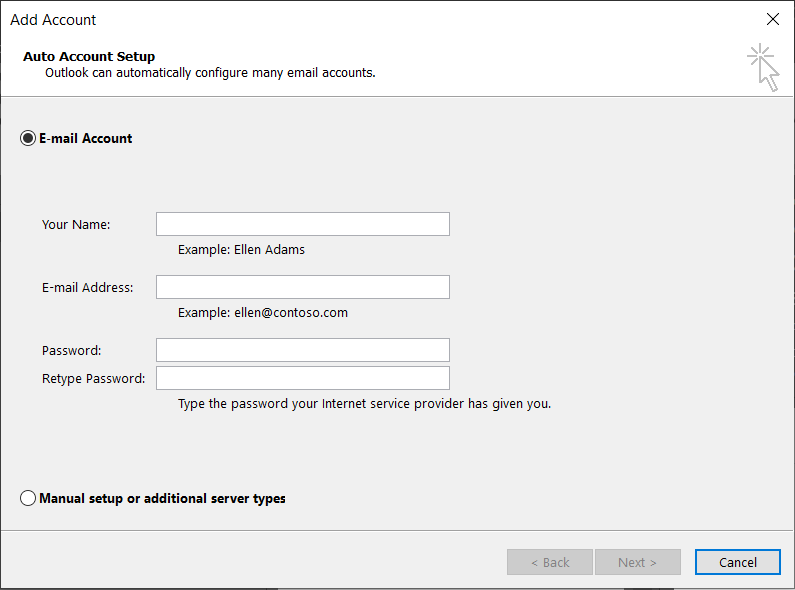
- Enter your Gmail account credentials to log in.
- Configure Gmail with Outlook and finish its setup.
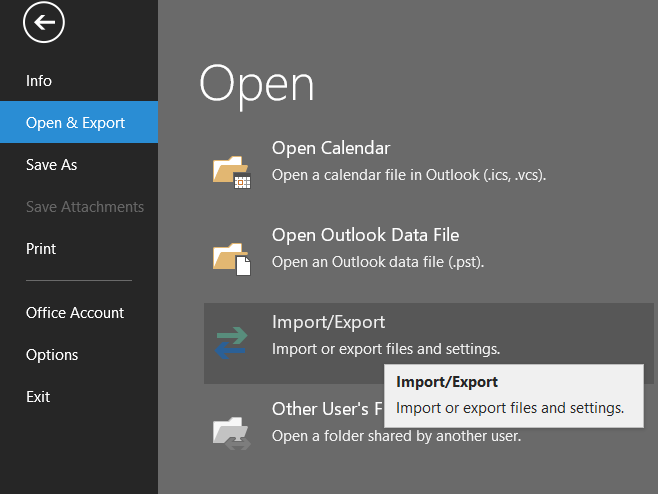
- Now, go to the File tab, select Open & Export and click Import/Export.
- Select the Export to a file option and tap the Next button.
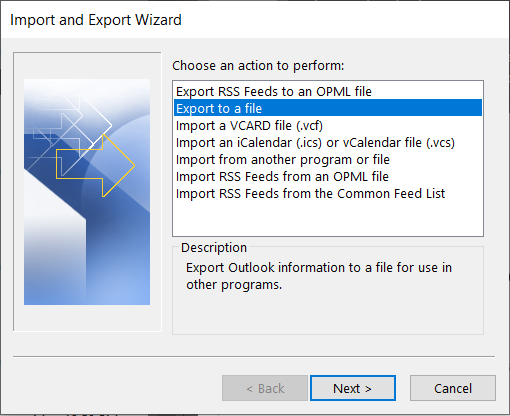
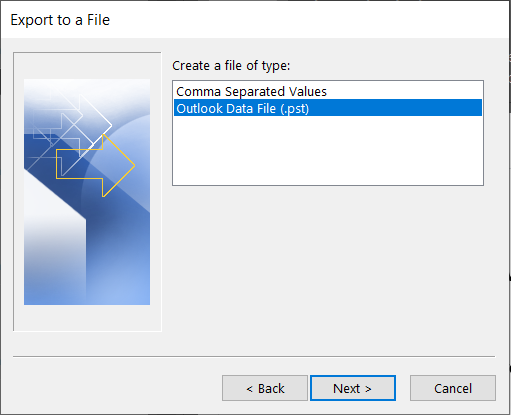
- Choose the Outlook data file (.pst) and click Next.
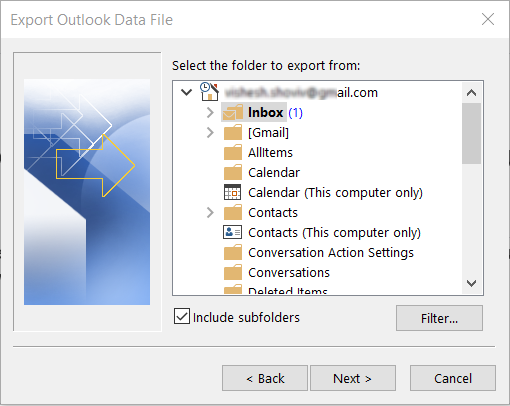
- Then, you have to pick the folder you want to export from and go with Next.
- Now, select the target location and click Finish.
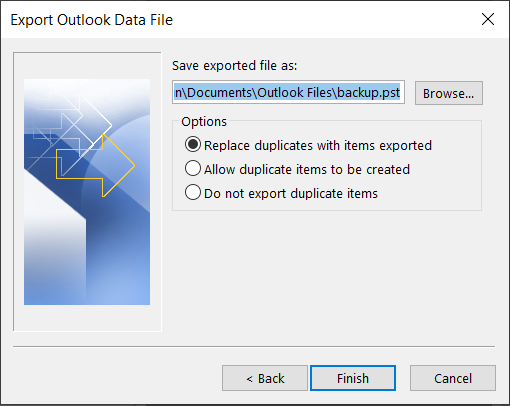
By following the above-given steps, you can export Gmail emails to .pst file format using MS Outlook. To say the manual method is free but, it is not free from limitations and drawbacks. Some of the demerits of manual way are below:
Demerits of Manual Methods:
- Manual methods are very complicated, tedious and ask for technical expertise. Chances of human error are always associated.
- Due to any reason, if the process interrupts, then you have to start the process again.
- The manual method doesn’t allow downloading the Gmail emails in bulk. You have to follow the processing time and again.
- Manual methods are very time-consuming hence not preferred by the professional.
- Users don’t get the advanced options like the date range filter that facilitates users to get the required results.
Also Read:- How to Download Gmail Emails?
Method 2: Export Emails from Gmail to PST Without Using Outlook:
Everyone wants effortless and effective processes and picture-perfect results. For the same, users opt for the professional third-party solution, i.e., Shoviv Gmail backup Tool.
Shoviv Gmail Backup Tool provides an all-in-one solution to export Gmail to PST file format. Using this software, users can easily export Gmail emails in bulk and use the advanced features to get the desired results. A free demo version of the Shoviv Gmail Backup Tool is also available that allows the first fifty items to process. Some of the prominent features are:
- This software exports bulk email data from Gmail to Outlook PST format.
- It works on job-based processing; users can create & run multiple jobs concurrently.
- Non-technical users can also easily use this tool, as it comes with a simple GUI.
- A filtration facility to include/exclude email data using the date range and folder criteria.
- An incremental export option to skip already migrated items in the target.
- Users can back up their Gmail data in PST, MBOX, MSG, EML, HTML, and other file formats.
- Moreover, it also allows users to export emails from OST, PST, MBOX, EML, to Gmail.
- Along with Gmail, users can use this tool for another IMAP-using email client.
- A free trial version is also available; users can try it on their Windows operating system.
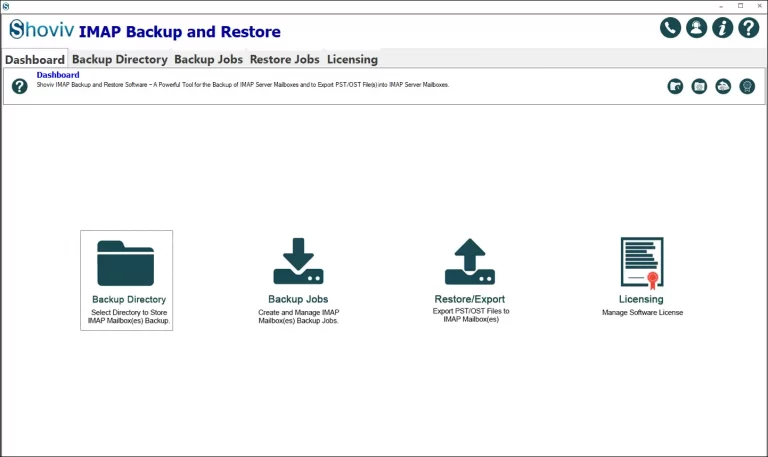
The software is not only restricted to backup. It is also an expert in restoring the .pst files to the IMAP server. Users get the backup and restore facilities in a single dashboard.
Steps to Export Gmail to PST Using Shoviv Gmail Backup Tool:
Shoviv Gmail backup Tool provides simple processing. Below all the steps are explained to guide users on how to export Gmail emails to PST.
- Firstly, install and open the software.
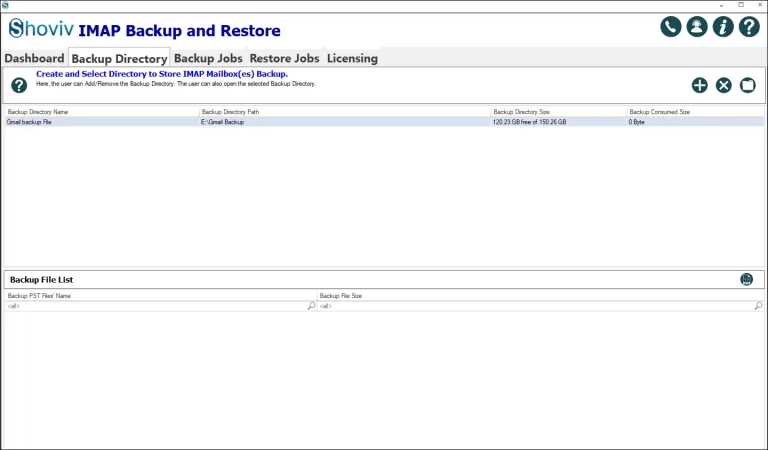
- Go with the “Backup Directory” tab from the dashboard.
- Provide the “Backup Directory Name” and “Backup Directory Path” and click OK.
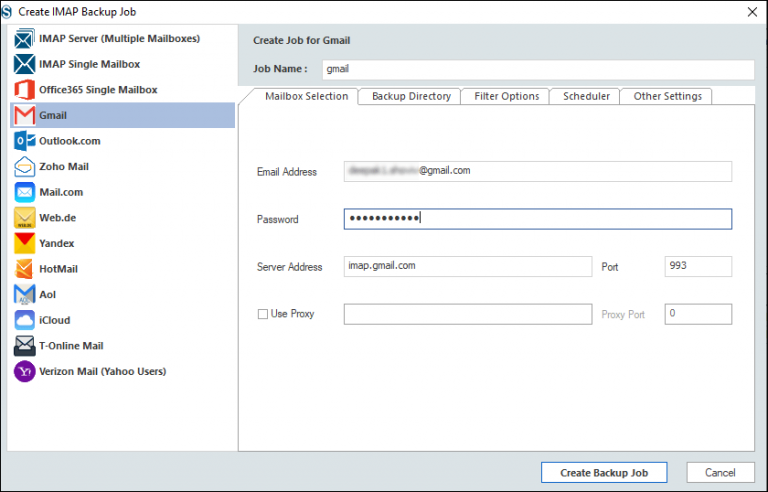
- Now, through the “Backup Jobs” tab, select Gmail. Provide Job Name, Email Address, and Password. Also, provide the Server Address. If using a proxy, then check the box and proceed accordingly.
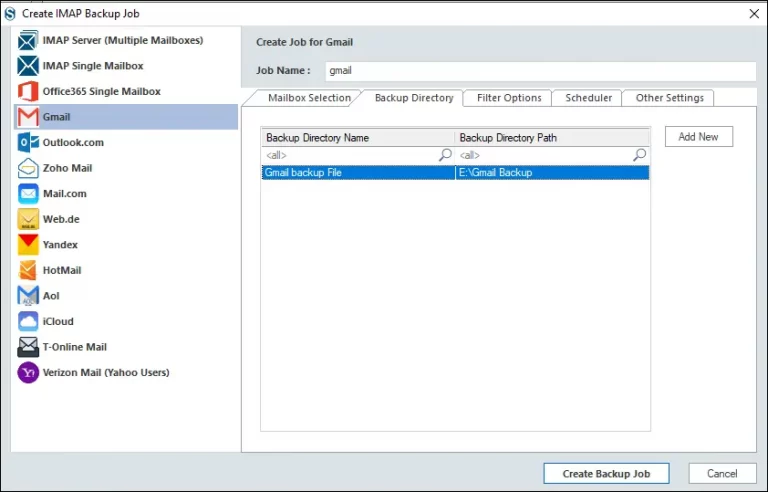
- Here, you can create a new backup directory, or you can go with the previous one.
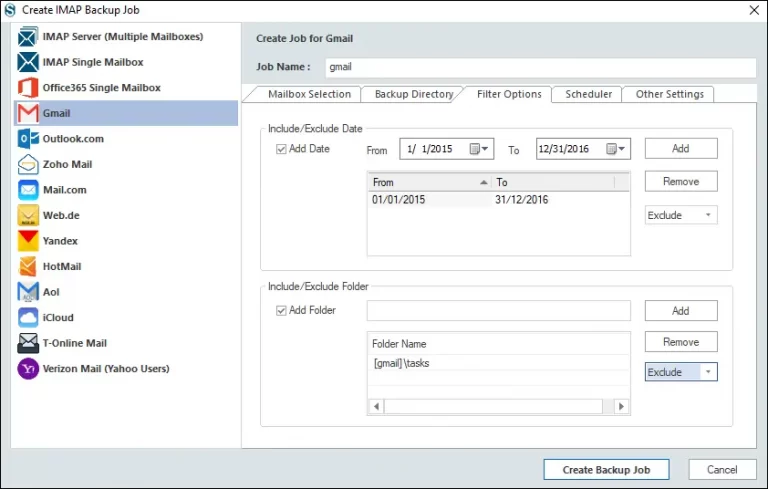
- Now using the filter options, you can apply filter. For filtering, Include/Exclude Date and Include/Exclude Folder options are present.
- Check the “Start Immediately After Creating Job” for instant processing.
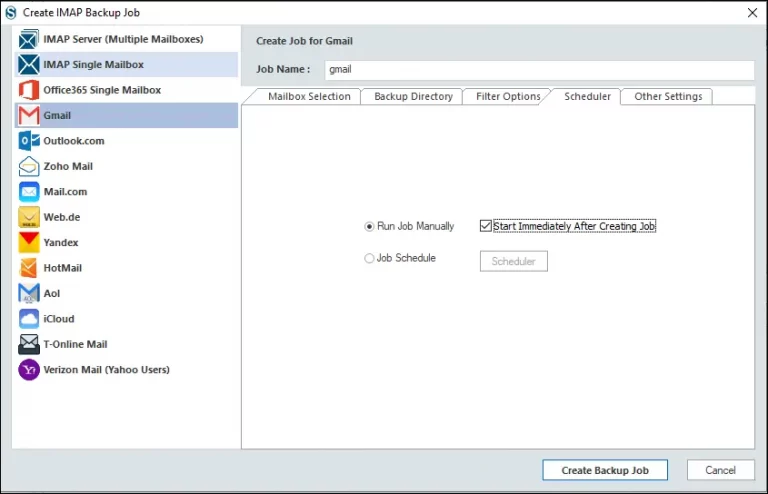
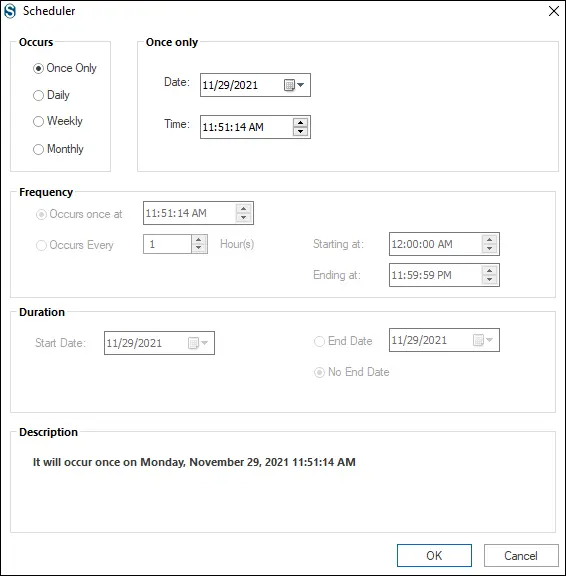
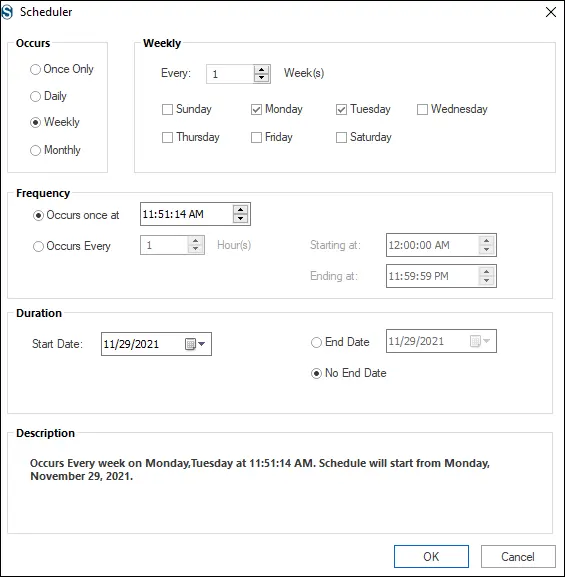
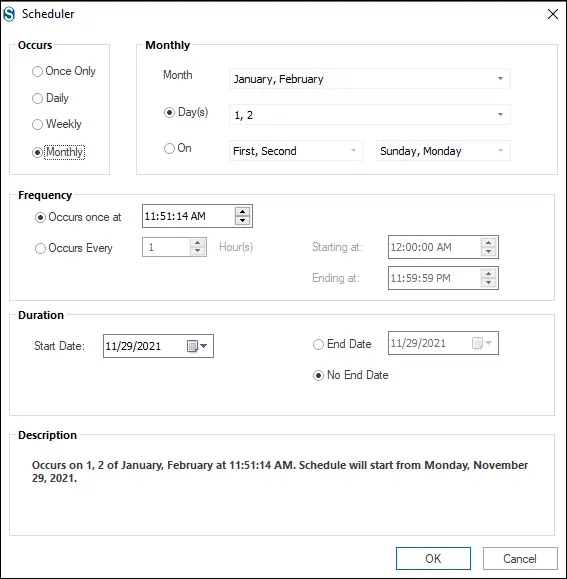
- Go with the “Job Schedule”if you want to schedule the backup. For options are given based on occurrences. Like for once only:
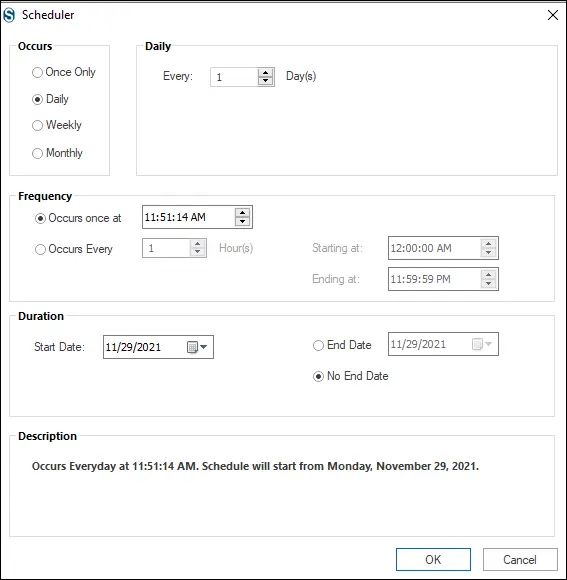
- For daily occurrence:
- To occur weekly:
- For monthly occurrence:
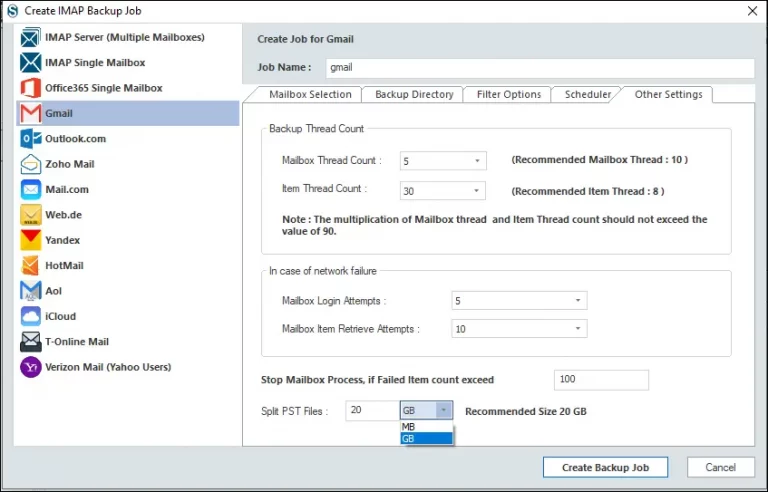
- Click Ok and go to Other Settings to use other features. Here, you can set the mailbox thread count limit: item thread count, mailbox login, and item retrieve attempts. The upper limit for failed item count can also be set, after which the process will stop. Users can also set the size limit for the resultant .pst files. Finally, click on the “Create Backup Job.”
- The actual process will start now. Now, the screen will display the report of the process. And this is how users can export Gmail to PST file format.
Also Read: How to Backup Gmail Emails to Hard Drive?
Method 3: Convert Google Takeout MBOX to PST
If you’ve used Google Takeout to archive your data, you likely realized that it provides your emails in an MBOX format—which Microsoft Outlook cannot open. To convert .mbox file to .pst format, using a dedicated converter is the most reliable way to restore that data into a usable environment.
Here is the process to Convert your Google Takeout MBOX files to Outlook PST using the Shoviv MBOX to PST Converter.
Step 1: Get Your Data Ready
- Download your archive from Google Takeout and extract the .zip file.
- Locate the .mbox file (usually found in the Takeout/Mail/ folder).
Step 2: Add MBOX to the Shoviv Interface
- Launch the Shoviv MBOX to PST Converter.
- Click the Add MBOX File button. You can select a single file or an entire folder if you have multiple Gmail labels exported as separate MBOX files.
Step 3: Choose Your Export Target
- Select PST as your output format.
Important Tip: You can choose to create a single PST for all MBOX files or a separate PST for each folder to keep your archives organized.
Step 4: Apply Data Filters (Optional)
- If you only need specific emails, use the Filter option to sort by Date Range or Subject. This prevents your new Outlook profile from being cluttered with old, unnecessary data.
Step 5: Finalize and Export
- Set a destination path on your hard drive and click Export.
- Once finished, you can simply open the resulting file in Outlook via File > Open & Export > Open Outlook Data File.
Why Use Automated Software Solutions Instead of Manual Methods?
- Maintains Metadata: Unlike manual drag-and-drop methods, these tool preserves “To,” “Cc,” “Bcc,” and original timestamps.
- Large File Handling: Google Takeout often generates massive files (20GB+). Shoviv is built to process these large MBOX files without crashing or freezing.
- Folder Hierarchy: It ensures that your Gmail labels are correctly converted into Outlook folders.
Wrapping up:
There are many Gmail users, and many of them frequently search the way to export Gmail emails to PST. We have two approaches: manual method and Shoviv Gmail backup Tool (AKA Shoviv IMAP Backup and Restore Software). The manual method has many limitations and drawbacks; that’s why users generally go with the professional Tool. Shoviv Gmail Backup Tool is a picture-perfect tool that provides all the user-eccentric features. It is a simple, fast, and proficient utility for this task.
Along with taking backup from the IMAP server to .pst files, it also offers to restore or import pst to Gmail Account. A free demo version of the software is also available to download, allowing users to check the software before purchasing. Download the demo version and explore its full features before buying.
Frequently Asked Questions:
Gmail uses “Labels” rather than traditional folders, which can cause confusion during an export to PST. A standard IMAP drag-and-drop often results in duplicate emails if one message has multiple labels. Use a dedicated Gmail export utility that intelligently maps Gmail labels into Outlook folders.
While Google Takeout is best for personal data export, it has limitations for professional archiving. It only exports in MBOX format, which isn’t natively compatible with Outlook, and large exports often fail or “time out” mid-download. For business continuity or legal compliance, a professional tool that exports directly to PST is often more efficient as it bypasses the need for file conversion and handles larger data volumes without crashing.
The incremental option is very user-centric. Suppose, for any reason, like network failure, the backup process is interrupted. In that scenario, the software will resume the process due to this feature. There is no need to start the process from the very beginning. Also, you will get rid of duplicity.
No, Google Takeout is mostly an “all-or-nothing” service. If you only need emails from the last fiscal year or a specific project label, a professional migration tool is superior.
You should prioritize your data security by avoiding “free” online converters that require server uploads, risking privacy leaks. Instead, use desktop software to process data locally. Ensure your tool supports OAuth2 Modern Authentication, allowing you to export Gmail emails securely without ever sharing your actual password.